
Broken Conversations – A Practical Guide for Improving Chatbot UX
Multimodal Interaction
Looks at how well the chatbot handles inputs and outputs beyond text such as voice, images, document uploads, or structured data and whether these modes are used effectively.
Multimodal interaction refers to a chatbot’s ability to process and deliver information across various formats, including text, voice, images, document uploads, and structured data. User efficiency is maximized when the input and output methods are tailored to the specific task. For example, it is often faster to upload an image of a complex error code than to transcribe it, while a well-structured table may be easier to parse than a long voice description.
When these modes are misaligned with the user’s needs, the result is always the same: a frustrated user.

Scenario 1: Image upload constraints
A user is asked by the chatbot to provide complex information that is difficult to put into text, but the chatbot only accepts text input and does not allow image upload or scanning capabilities.

Scenario 2: Lack of visual support for complex data
A user asks the chatbot for information that is dense, or multi-dimensional. The chatbot responds with a long, text-only explanation.

Scenario 3: Non-interactive visual responses
A user interacts with a chatbot and asks for information they want to quickly scan, copy, reuse, or open in separate tabs (e.g. instructions, links, or policy references). Instead of returning text with links, the chatbot provides the answer as a static image or screenshot rather than selectable text.
Scenario 4: Missing voice input options
A user interacts with a chatbot on their mobile device while on the move, multitasking, or holding items, making typing inconvenient. The user would prefer to ask a question verbally or dictate a longer description rather than typing it out. However, the chatbot only accepts typed text and does not support voice input or voice messages.
Scenario 1:
Image upload constraints
A user is asked by the chatbot to provide complex information that is difficult to put into text, but the chatbot only accepts text input and does not allow image upload or scanning capabilities.

Examples
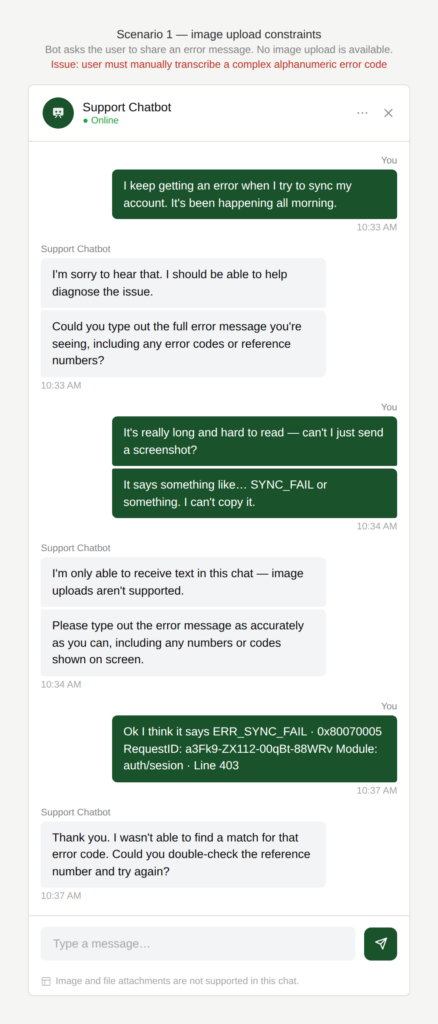
Do I need to type this word for word?
The chatbot asked the user to share the error message they encountered. The error message was very complex for a user, with long alphanumeric numbers etc.
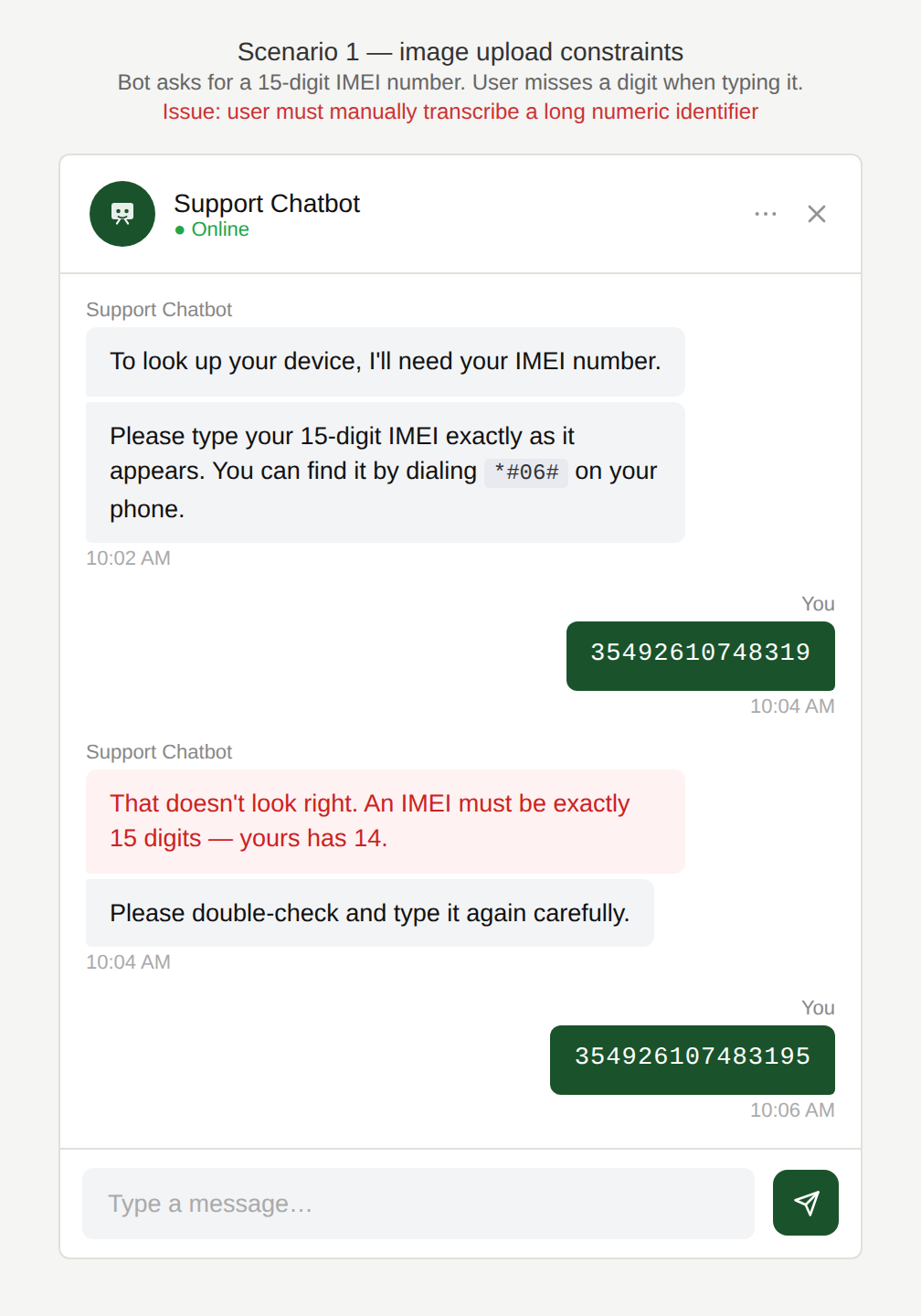
Did I miss a digit?
The chatbot asked the user to share a long and complex number such as their IMEI (International Mobile Equipment Identity: a 15-digit unique numeric identifier for mobile phones) or VIN (Vehicle Identification Number (VIN): a 17-character identifier for individual vehicles).
Why is this an issue?
The chatbot forces the user to manually enter complex information:
- Users must manually type or copy long strings of characters.
- Errors are common and may go unnoticed.
- The interaction becomes slower and more frustrating than necessary.
Why do we care?
Inputting long strings of characters is prone to errors and takes a lot longer than uploading an image that contains the requested information:
- Higher error rate: Long alphanumeric strings are prone to transcription mistakes.
- Inefficiency: Manual entry takes significantly longer than sharing an image.
- Task failure: Invalid inputs lead to retries, loops, or escalation to support.
- Poor experience: The chatbot feels rigid and misaligned with real-world usage.
What is the remedy?
When users are asked to provide complex identifiers, the chatbot should minimize manual effort and thus the risk of mistakes:
- Prefer image-based input when possible: Allow users to upload images with the required information.
- Support scanning and automation: Offer a scanning option to reduce transcription errors, where possible.
- Offer a copy/paste friendly flow: Add a “paste from clipboard” prompt and detect common formatting issues (e.g. removing leading or trailing spaces etc.).
- Allow lookup via alternative identifiers: Ask for a license plate to retrieve the VIN, for example.
- Use a structured input UI: To simplify the entry, use segmented fields (e.g. 3–4 character blocks) auto-formatting, and character restrictions where applicable.
- Validate early and clearly: Run real-time checks (length, forbidden characters etc.). Highlight likely mistakes immediately and explain how to fix them.
Are there any exceptions to this rule?
There are justified exceptions when an uploading an image might not be possible, such as:
- Channel limitations: Channels like voice bots inherently do not support attachments or camera access.
In these cases, the chatbot should optimize the entry process as much as possible.

Scenario 2:
Lack of visual support for complex data
A user asks the chatbot for information that is dense, or multi-dimensional. The chatbot responds with a long, text-only explanation.
Examples
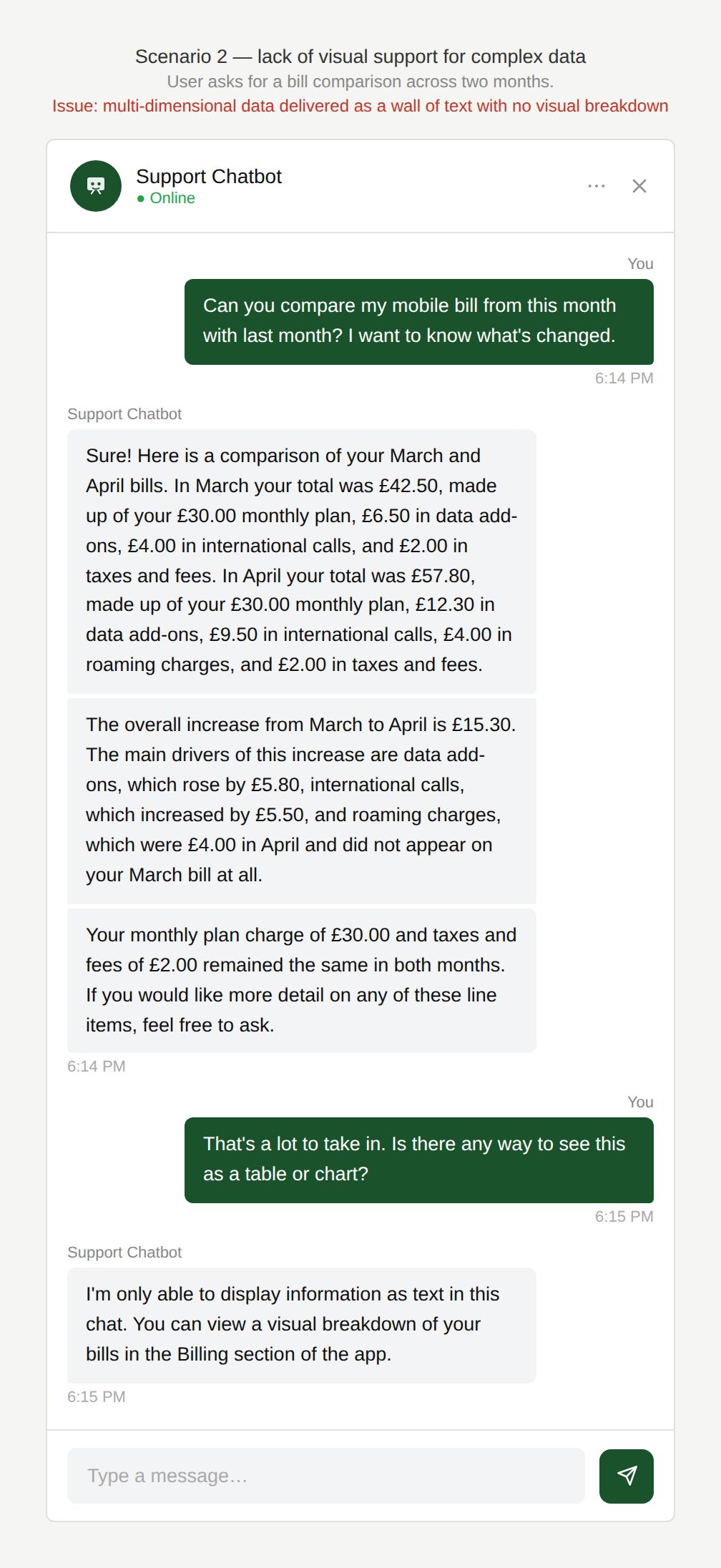
Can I get a visual depiction?
The user asks the chatbot to compare their mobile bill for this month versus last month. The chatbot provides the comparison entirely in text.
Why is this an issue?
The chatbot defaults to text-heavy responses for information that is difficult to parse without visual aids:
- The user must read through the entire response to parse out the key points.
- Key insights, patterns, or anomalies are easily overlooked.
- The cognitive effort increases as the content volume grows.
Why do we care?
When information becomes dense or complex, presentation directly affects whether users can understand and act on it. Walls of text are difficult to understand:
- Reduced comprehension: Large blocks of text are harder to scan and understand.
- Higher cognitive effort: The user must extract structure and meaning manually.
- Slower decision-making: Important signals are buried in prose.
What is the remedy?
Information density should be matched with appropriate visual structure to support faster understanding:
- Add structure before adding visuals: (also see Content and Accuracy) Use headings, summaries, bullet points, and whitespace to break up content. Surface key takeaways or “what matters most” at the top.
- Use lightweight visualisation where appropriate: Use tables, simple bar/line charts, icons etc. to visualise the data.
- Highlight changes inline: Use visual emphasis for increases/decreases (badges, arrows, “+€X”, “-€X”).
- Offer export/share options: Allow download of the comparison (PDF/CSV) for users who want to review offline.
Are there any exceptions to this rule?
There are justified exceptions when visual representation might not be desired or possible, such as:
- Accessibility needs: Charts, use of color without proper labels/alt text can be harder for screen readers than text.
- Low-complexity content: Short, straightforward information may be clearer in text alone.
- Small screens or constrained UI: Dense visuals can become unreadable on mobile; a compact text summary may work better.
- User preference: Some users may explicitly prefer textual explanations.
In these cases, the text should still be clearly structured and scannable, avoiding long unbroken paragraphs.
Scenario 3:
Non-interactive visual responses
A user interacts with a chatbot and asks for information they want to quickly scan, copy, reuse, or open in separate tabs (e.g. instructions, links, or policy references). Instead of returning text with links, the chatbot provides the answer as a static image or screenshot rather than selectable text.
Examples
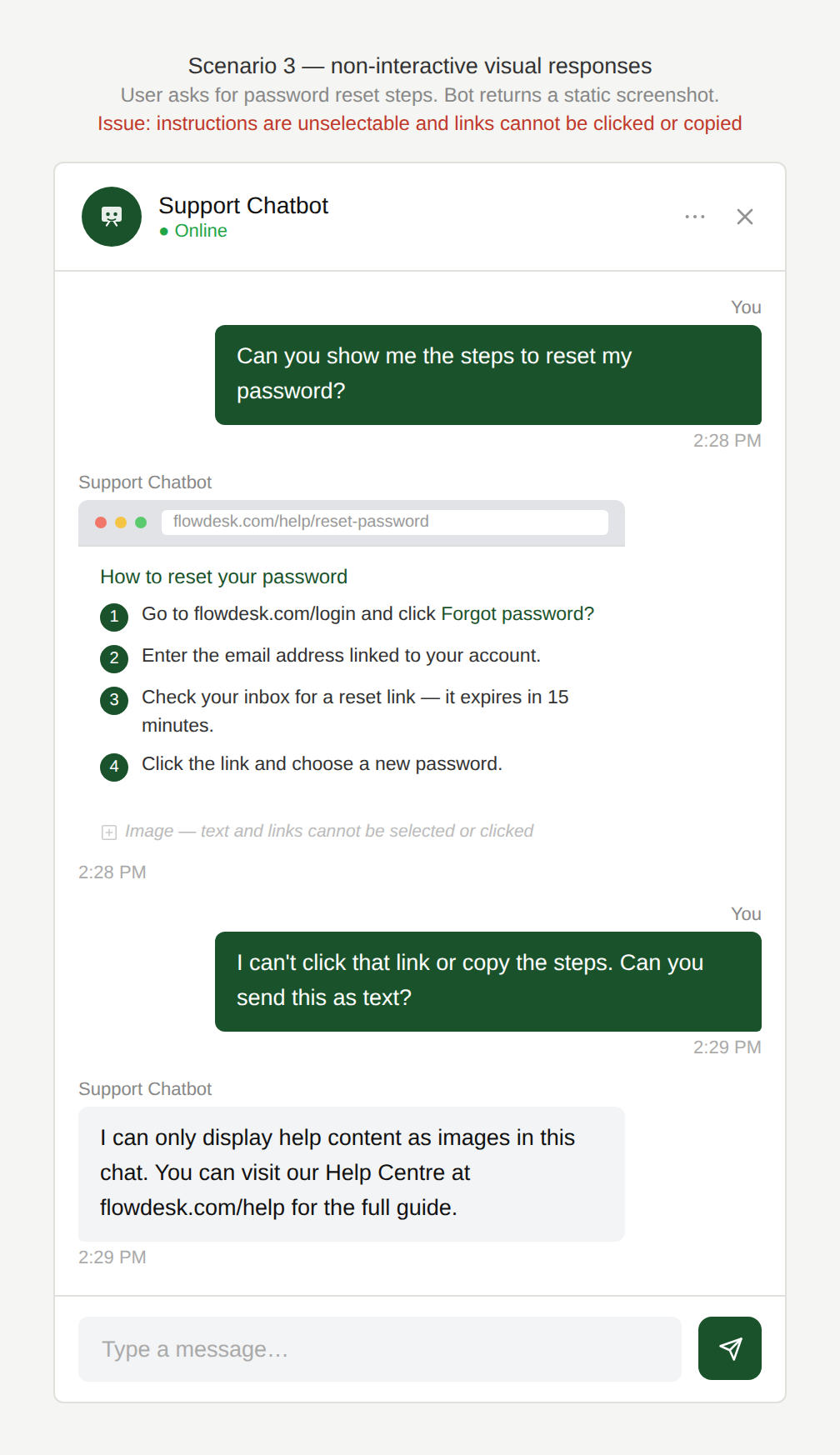
Can I copy this?
The user asks: “Show me the steps to reset my password.”
The chatbot returns a screenshot with the instructions instead of listing the steps in text.
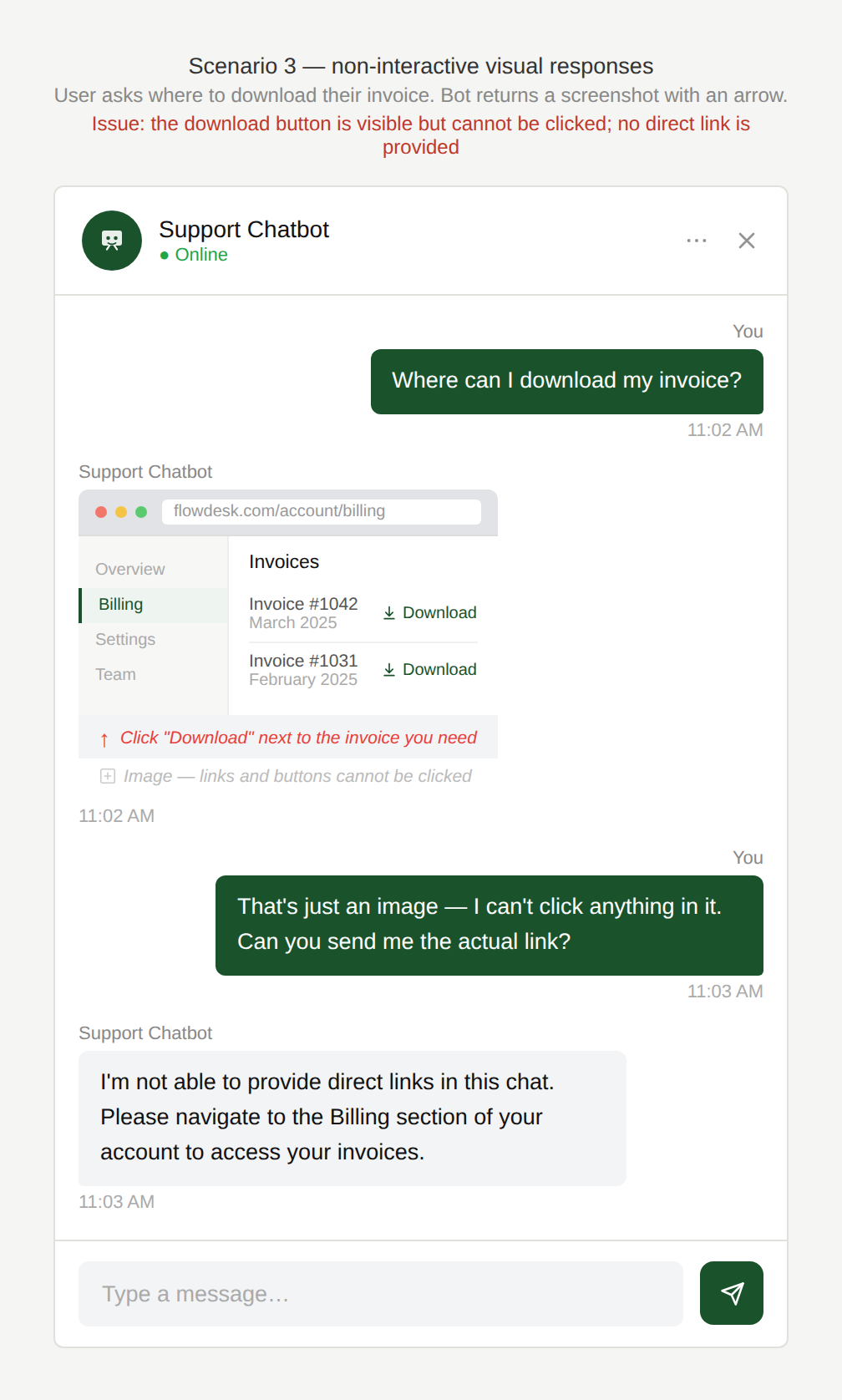
Is this clickable?
The user asks: “Where can I download my invoice?”
The chatbot displays an image showing a webpage with the location of the button rather than providing a clickable link.
Why is this an issue?
The chatbot provides information only in visual format and the user cannot easily copy the steps, open the links directly, or interact with the content in the way they expected:
- Key information is embedded or “trapped” in images instead of selectable text.
- Links are not clickable.
- Instructions cannot be copied or reused easily.
- Content is harder to scan quickly.
- Visual responses reduce accessibility (e.g. screen readers).
Why do we care?
This forces users to manually interpret or retype information that could otherwise be easily interacted with:
- Efficiency: Users often want to copy steps, save links, or open multiple resources quickly.
- Accessibility: Image-only responses can be difficult for assistive technologies to interpret.
- Usability: Text is easier to scan and process than graphics for procedural information.
- Flexibility: Users may want to reuse the information elsewhere (e.g. paste into notes or share) or search within the response provided.
- Expectation mismatch: In chat interfaces, users typically expect textual responses with interactive links.
What is the remedy?
Chatbots should deliver actionable information in a format users can interact with:
- Prioritize text for informational responses: Offer clickable links and key information written out and use visuals only as a supplement. If a visual is helpful, include it alongside.
- Use visuals as a supplement, not a replacement: Images can accompany text to illustrate steps, but should not contain the only version of the information.
- Provide clickable links and selectable text: Ensure users can open resources directly from the chat.
- Use structured formatting for clarity: (see also: Content and Accuracy. Present instructions as numbered steps or bullet lists.
- Include alt text or descriptions for images: If images are necessary, ensure the information is also available in text for accessibility.
Are there any exceptions to this rule?
There are justified exceptions when a visual response is acceptable, such as:
- A highly visual task: For example, identifying a UI element, comparing product photos, showing a map) where the content is best understood as a diagram (e.g. coverage map, plan comparison chart).
- The user explicitly asks for screenshots/images.
Even then, include at least a minimal text alternative for accessibility and copyability.
Scenario 4:
Missing voice input options
A user interacts with a chatbot on their mobile device while on the move, multitasking, or holding items, making typing inconvenient. The user would prefer to ask a question verbally or dictate a longer description rather than typing it out. However, the chatbot only accepts typed text and does not support voice input or voice messages.
Examples
Can I just speak my question?
A user is commuting and wants to ask the chatbot a question without typing on a small screen.
Can’t I just ask?
A user is shopping and wants to quickly ask: “Do you have a black waterproof hiking jacket under $150?”
Do I have to type it all?
A user wants to dictate a longer message, such as explaining a problem with an order or reporting an issue.
Why is this an issue?
The chatbot only accepts typed text, limiting how users can interact:
- Users cannot send voice notes or dictate messages.
- Hands-free interaction is not possible.
- Describing complex requests through typing becomes slow or inconvenient.
- The interface does not adapt to mobile or on-the-go usage.
Why do we care?
It makes the experience less convenient and less “assistant-like” for shopping. It limits users who prefer speaking, have accessibility needs, or want faster input:
- Convenience: Voice can be faster and easier than typing, especially on mobile devices.
- Accessibility: Some users find voice input easier due to motor, literacy or visual limitations.
- Efficiency: Describing complex needs verbally is often quicker than typing.
- Natural interaction: Voice aligns with how users already interact with many digital assistants.
- Task failure: The user might abandon the chat due to effort/friction, especially on small screen devices.
- Data quality: The user might provide shorter, less precise requests which may affect the quality of the chatbot’s subsequent responses.
What is the remedy?
Providing both voice and text options gives users flexibility to interact in the way that is most convenient for them:
- Enable voice input or dictation: Allow users to dictate messages through the device’s microphone.
- Support voice notes: Accept short recorded voice messages that the chatbot can transcribe and interpret.
- Provide a microphone icon in the input field: Clearly indicate that voice interaction is available.
- Use automatic transcription: Convert spoken input into text so the conversation remains readable.
- Allow users to edit transcribed text: Give users the chance to correct errors before sending.
Are there any exceptions to this rule?
We have not come across any valid, acceptable exceptions.